
We are pleased to announce the release of HelpSmith 10.4 (which you can download from our website) that now allows you to dynamically filter the list of help topics in the Project Manager while working on a help project, adds filters for the Keywords pane, includes the option to automatically generate and update the header file during the compilation of the .CHM help file, and other enhancements.
Thanks to the HelpSmith’s features, such as the topic editor with full-featured styles (including combined styles and table styles), flexible import settings, the Format Painter tool for quick formatting of your content, the re-designed Image Tool for creating annotated screenshots, flexible options for importing documentation, among others, and its user-friendly interface, the product has already been appreciated by many users who create help files and documentation in various formats. However, in order to make the help authoring process even more convenient, we continue to improve both the functionality and the user interface of the program.
Easily Filter the List of Help Topics Based On the Selected Values
When working on a help project, you may need to view a limited set of topics filtered by the Title, Context, ID, Status, and other values. Therefore, in HelpSmith 10.4, you can now use dynamic filters allowing you to display topics based on the selected values. For example, you can fetch topics whose titles contain some text, view topics with a specific status, and so on.
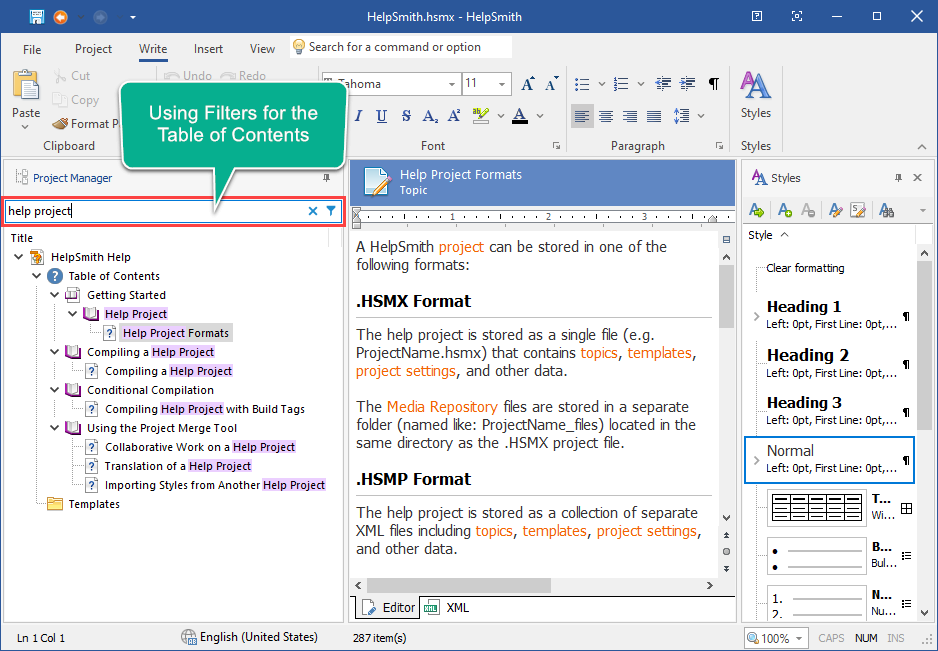
How to Apply Filters in the Project Manager
- In the Project Manager, click the Filters icon in the right side of the search box.
- In the Select Filters dialog, select the values that you need.
- Click OK.
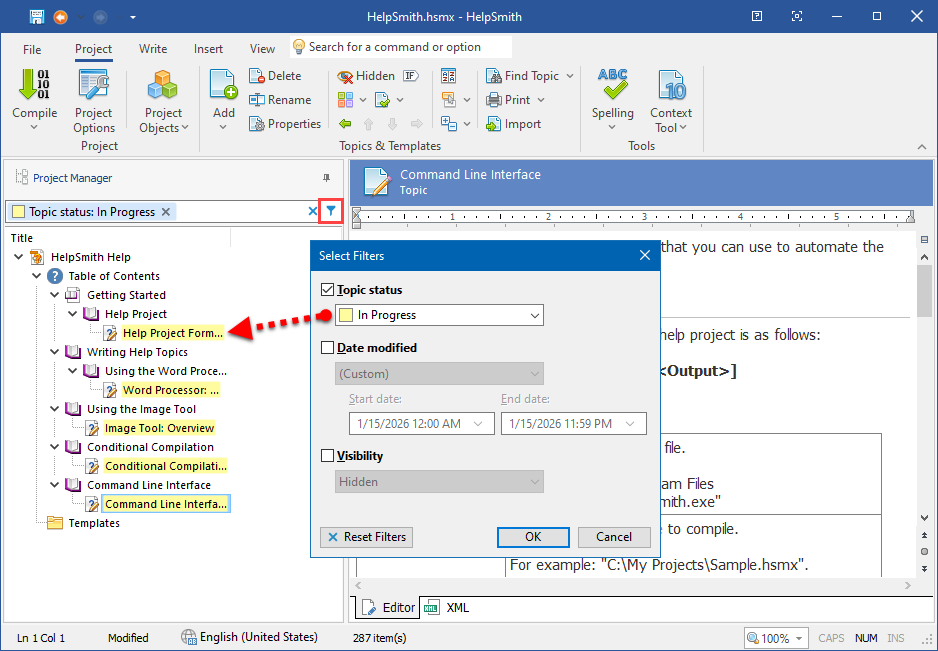
Thanks to the user-friendly interface of the Filters feature, you can easily add values by which to filter the list of topics, and also, cancel the filtering mode to view the full list of topics with just one click.
It should be noted that while working on a help project, HelpSmith allows you to dynamically filter the content of the project manager based on the selected values, making it even more convenient to view and edit the table of contents of your documentation!
View the Keywords Associated with the Currently Selected Topics
Similarly to the Table of Contents, when working with keywords, you can now easily find keywords that contain a specific line of text, or display only the keywords associated with the topic(s) which are currently selected in the Project Manager.
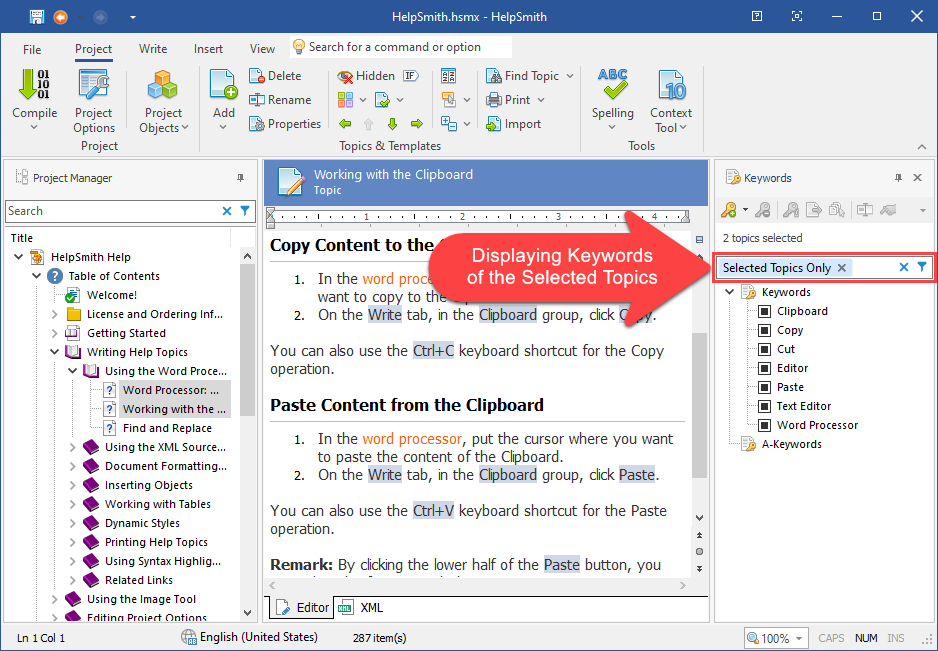
How to Display Only the Keywords of the Current Topic
The Filters feature allows you to easily display the keywords which are associated with the current topic only.
- In the Keywords pane, click the Filters icon in the right side of the search box.
- In the Select Filters dialog, enable the Selected topics only option.
- Click OK.
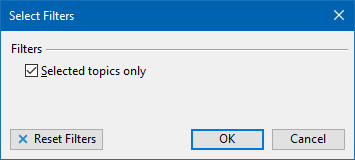
Remark: If you need to cancel the filtering mode, you can simply click the Cross icon in the search box, or, alternatively, click the Reset Filters button in the dialog above.
Thus, the new HelpSmith update makes it even easier to edit the list of associated keywords as you can quickly find the keywords you need.
Generate the Header File for Your Application Along with the .CHM Help File
If you create an HTML Help (.CHM) file for your application, HelpSmith also allows you to generate a header file containing Contex and Id associations of your topics. Thus, you can operate with topics from the code by using constants, which makes the help file integration process easier.
While in previous versions, you could use the Export Context Numbers command to create a header (or module) file for a specific programming language (e.g. C++, C#, VB.NET, Delphi, etc.), HelpSmith now adds an option to automatically generate (or update) the header file during the help file compilation process.
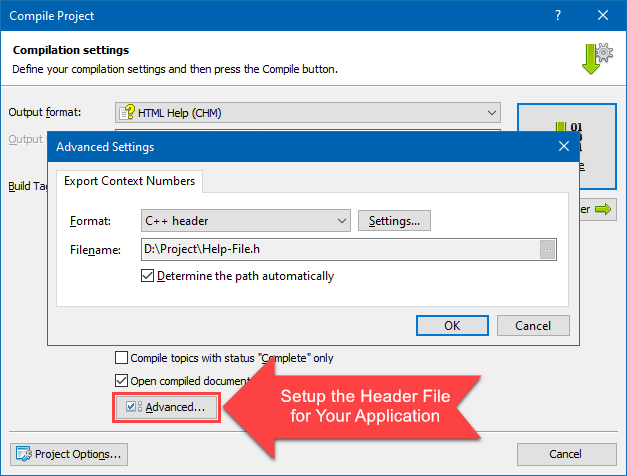
How to Generate a Header File Along with the CHM Help File
- On the Project tab, click Compile.
- In the Compile Project dialog, in the Output Format box, select HTML Help (CHM).
- Click Advanced and specify the header file’s options including the programming language and filename.
- Click OK.
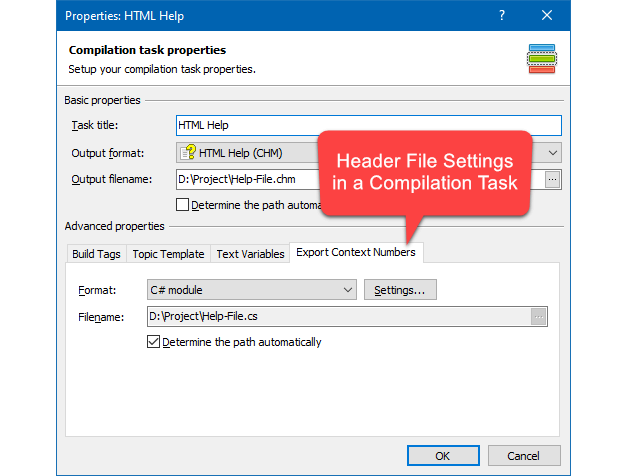
Remark: If you use the batch compilation mode, you can similarly specify header file’s options in the properties of a compilation task for the HTML Help format.
Thus, HelpSmith allows you to create a .CHM help file and update the header file for your application with just one click of the mouse, eliminating the need to perform this task manually every time!
Choose the Right Help Authoring Tool for Your Documentation
If you are looking for a help authoring tool to create your documentation, the latest HelpSmith version offers you all the necessary features in an intuitive environment. For example, in HelpSmith, you can write content in a powerful text editor with true support for styles (including combined styles and table styles), apply the Format Painter tool to quickly re-use the formatting of existing content, benefit from the built-in Image Tool for annotating screenshots, use editable templates to customize the appearance of your topics, and other numerous features.
In recent HelpSmith updates, we’ve also improved the Import feature which greatly simplifies the process of importing existing documents in various formats, including Word documents, HTML files, and the simplified Markdown format. Moreover, HelpSmith can automatically adjust formatting styles and organize images during the import process.
Finally, with the dynamic filtering feature introduced in this HelpSmith update, you can now easily find the topics you need by their attributes, as well as view the associated keywords. This makes the process of editing and managing your help project much more convenient!
Release Notes for HelpSmith 10.4
- In the Project Manager, you can now easily view the topics containing a specific line of text in their titles.
- Added the Filters feature allowing you to display the list of topics based on the Status, Date, and Visibility values.
- The keyword-related controls have been moved directly to the Keywords pane from the Ribbon.
- Added filters for the Keywords pane allowing you to display only the keywords associated with the currently selected topic(s), or to filter keywords by their titles.
- When compiling a .CHM help file, HelpSmith can now automatically export a header file for the selected programming language.
- In a Web Help system, hyperlinks of the web page type that linked to the #top anchor did not work correctly.
- The HTML Help and Web Help generators now process hyperlinks to the “top” bookmark without warnings.
- Fixed an issue with user-defined images used for a list style.
- When inserting HTML code within a paragraph, an unexpected space was added before the element.
- Added a command line parameter to specify a custom directory for the HHP project used for generating a .CHM help file.
- The command line interface (CLI) first tries to use the parent console window.
- Some types of bulleted lists might not be properly imported from a Word documented.
- Other enhancements and minor bug fixes.
How to Upgrade
If you have a license for HelpSmith 10.x (or for a previous version for less than a year), you can upgrade to the latest HelpSmith version (the same edition) for free. Otherwise, you can upgrade existing licenses to HelpSmith 10.x at a special price. To place an upgrade order, you can visit this link.
Download HelpSmith 10.4
You can download the latest HelpSmith version here.