
We are pleased to announce the release of HelpSmith 11 (which you can download from our website) that now allows you to view and edit topics and templates in separate tabs, provides easier navigation thanks to improved user interfaces, includes improvements to the import capability, facilitates language selection in various dialogs, offers an easy way to access the HHP project data, and other enhancements.
The recent HelpSmith updates have introduced many improvements to the features and user interface, including dynamic filters for the Project Manager tree, an excellent Format Painter tool for the topic editor, a frame-less Web Help system with modern design themes, and the embedded Image Tool, which has been integrated directly into the main window of the help authoring tool. With the release of HelpSmith 11, we begin a new cycle of updates to make the process of creating application help files, online help systems, and printable documentation easier and more efficient with new capabilities and user-friendly interface solutions.
Edit Topics More Efficiently with the HelpSmith’s Multi-Tab Mode
In HelpSmith 11, you can now view and edit topics in the multi-tab mode that greatly enhances the process of creating technical documentation, making it more efficient and organized. While you can, as usual, select a topic for editing in the Project Manager pane, it is now also possible for you to open topics and templates in separate tabs.
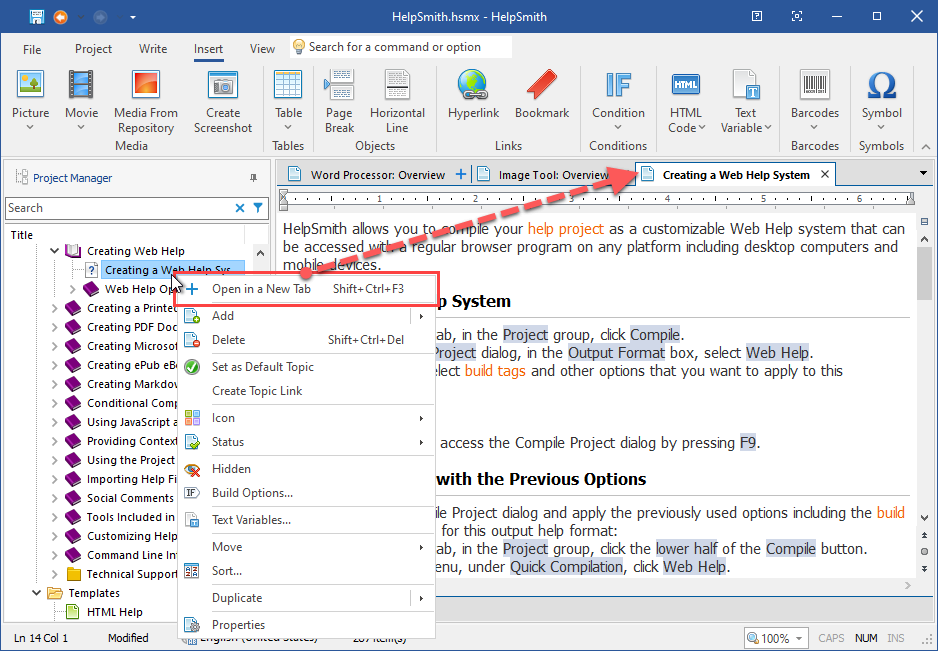
When you select a topic in the project manager, HelpSmith will simply open it in the main tab.
If you need to open a topic or template in a secondary tab:
- In the Project Manager, right-click on the topic or template you need.
- In the popup menu, click Open in a New Tab.
Remark: If a topic is already opened in the main tab, you can also open it in a secondary tab by clicking on the plus icon in the main tab.
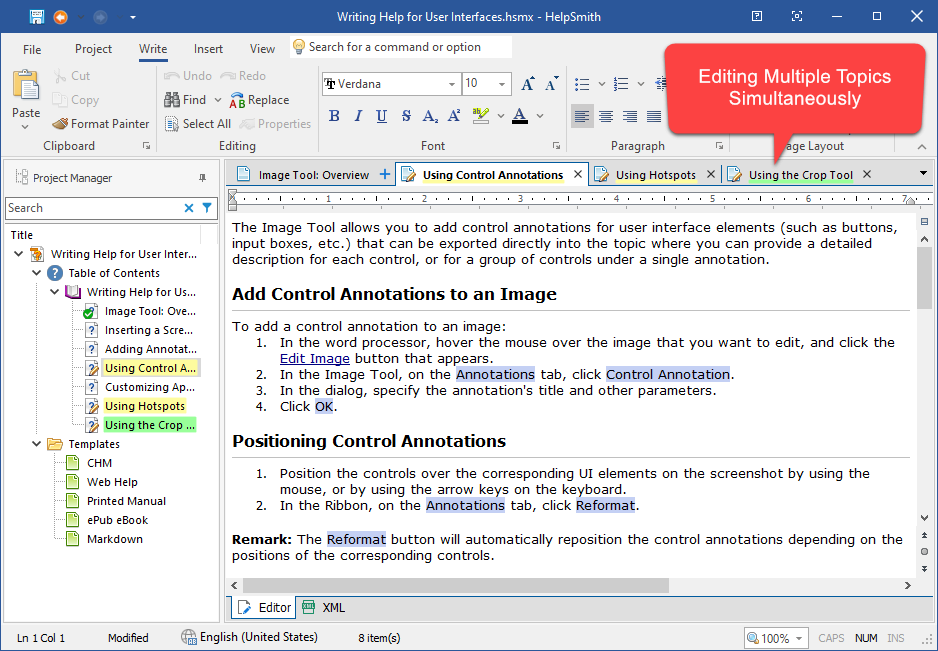
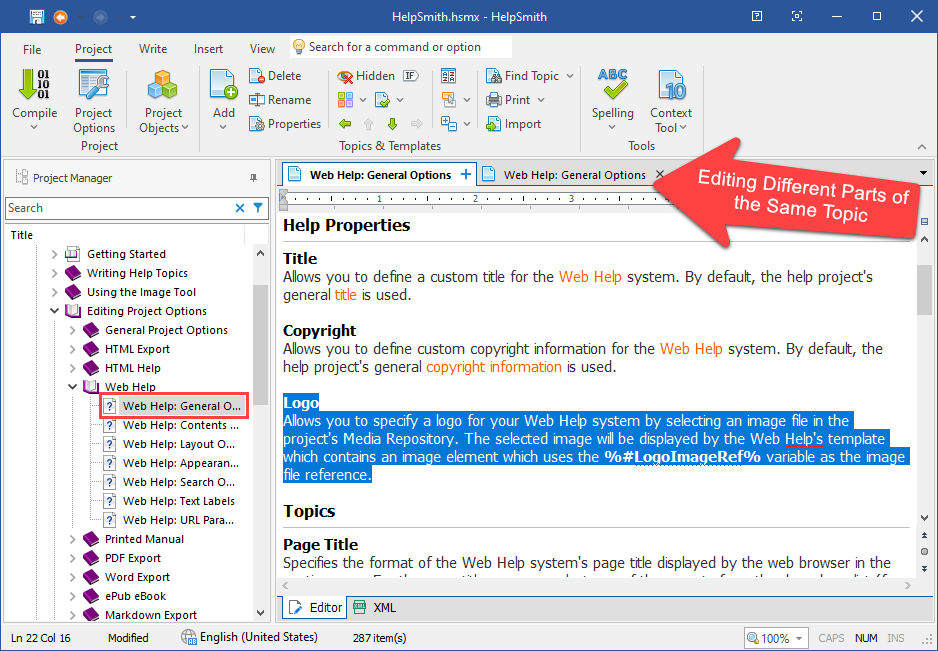
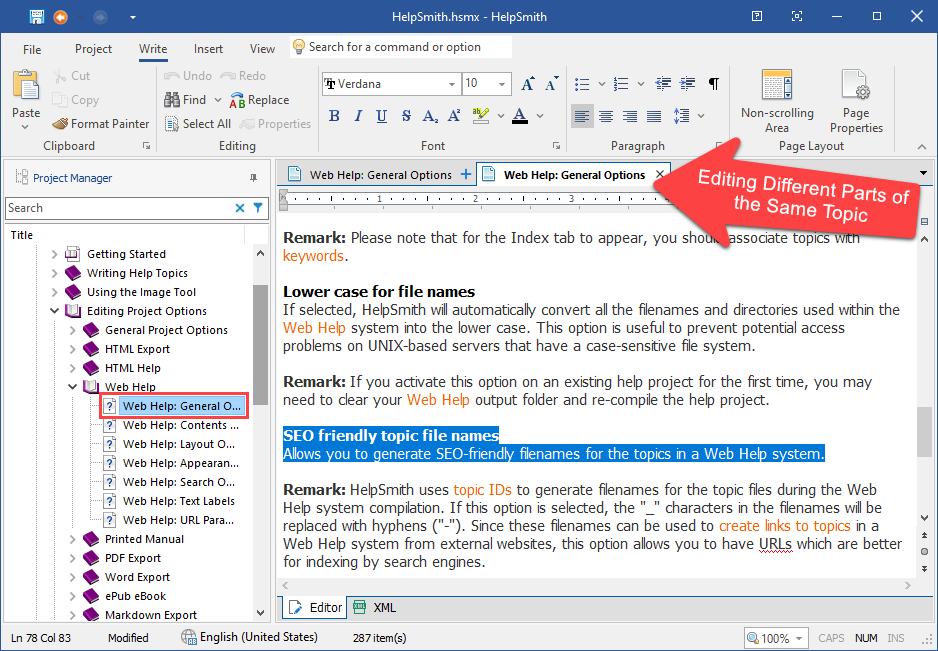
The multi-tab editing gives you a number of benefits, allowing you to edit different parts of a single topic, or work on multiple topics simultaneously. As a result, HelpSmith makes the process of writing and updating your documentation more efficient and effective!
Using Multi-Tab Editing When Working on a Help Project
As a technical writer, you can use HelpSmith’s multi-tab support when creating or maintaining help files for software or company’s internal documentation, or when you need to update content of an existing help project, in the following ways:
Viewing and Editing Help Topics on Separate Tabs
While working on a particular topic, it may be necessary to review other topics in order to ensure the correct use of terminology, style, and other aspects. In HelpSmith 11, you can now simply open such topics in separate tabs and switch between them to review their content and get the necessary details. HelpSmith also allows you to view and edit the same topic in the main and secondary tabs. Thus, you can switch between different parts of the topic, which is especially helpful when editing a long topic.
Pinning Topics for Review and Updates
If you need to update a set of topics in a help project, you can use the tabs along with different statuses (e.g. Complete, In Progress, Waiting Review, etc.) which can be set in the project manager. Having opened the topics in separate tabs, you can instantly see and navigate to the topics which need to be reviewed or updated. The tabs allow you to see the statuses and key details of the appropriate topics. Finally, because the state of the tabs is saved along with the help project, you can easily get back to your work when you open your help project next time!
Obviously, support for the multi-tab editing is an essential feature of a modern help authoring tool as it helps you make the documentation process more organized and streamlined.
Easily Manage Your Help Projects with Improved User Interfaces
In HelpSmith 11, we continue to improve various user interfaces in order to make HelpSmith more-user friendly and working with the help authoring tool more convenient.
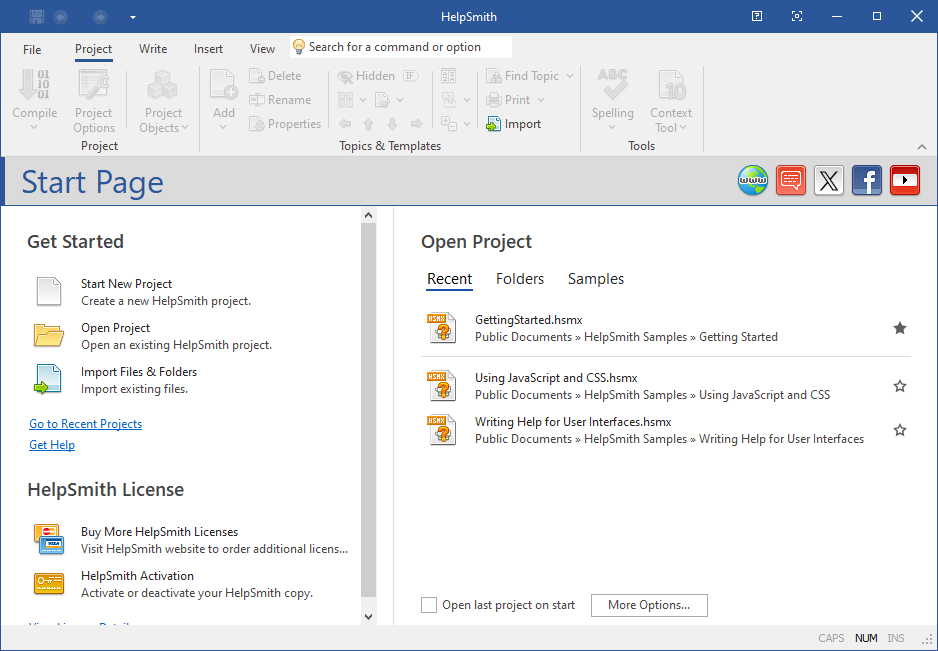
On the redesigned HelpSmith’s Start Page, you can now easily access your recent help projects, add projects to favorites, access project folders, as well as the sample help projects. The tab control instead of the drop-down menu lets you switch between these sections quicker.
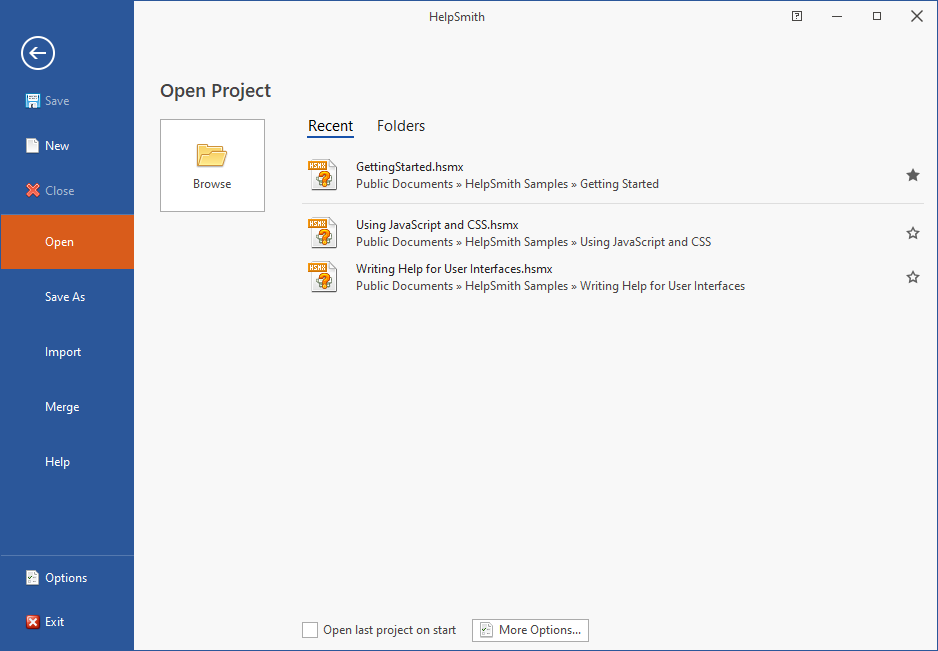
On the File tab, the Open section now combines the ability to open a help project from the disk and access your recent project files and folders into a single section, following the modern user interface (UI) approach.
It should be noted that, in the list of recent help projects, you can right-click on a project and open its location in Windows Explorer. Similarly, you can also copy the full path and filename of the project to the Clipboard.
Improved Language Selector for Multi-Lingual Help Projects
If you are working with more than one language in the same help project, in HelpSmith 11, you will find an improved language selection dialog. The Language window now automatically sorts the list of languages taking into account the languages which are already used in your help project.
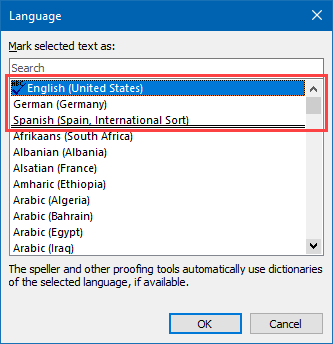
The list of preferred languages is automatically updated when you create a new help project, open an existing help project (taking into account the project’s language setting, languages of the text styles, etc.), or select a specific language in various dialogs. Thus, when you need to change the language of the text or set the language setting of a text style, the Language dialog will show your preferred languages at the top of the list of available languages.
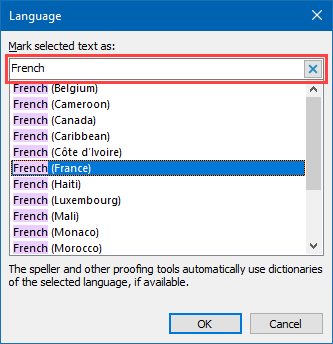
Additionally, the Language dialog now includes a search box allowing you to filter the languages by name and quickly find the desired one in the list.
Define a Custom HHP Directory through the User Interface
In some cases, when creating a .CHM help file, you may need access to the HHP project, which contains data used by the help compiler (HHC.exe).
While in the previous version of HelpSmith, you could specify a custom directory for the HHP project using a command line switch, in HelpSmith 11, this option is also available from the user interface during the compilation process.
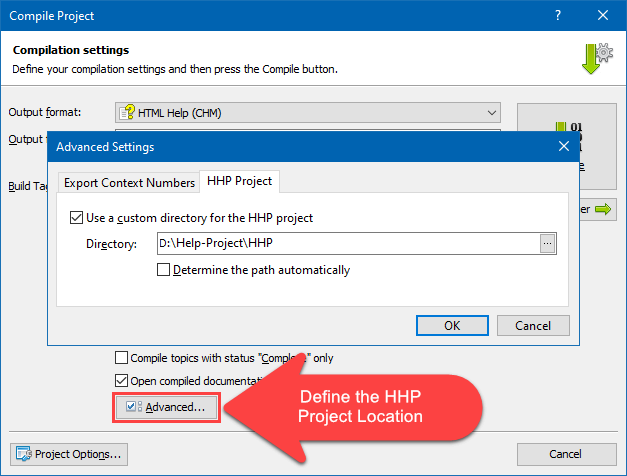
How to Set a Custom Directory for the HHP Project
- On the Project tab, click Compile.
- In the Output Format box, select the HTML Help (CHM) format.
- Click Advanced and go to the HHP Project tab.
- Specify the directory where you want to export the HHP project.
- Click OK.
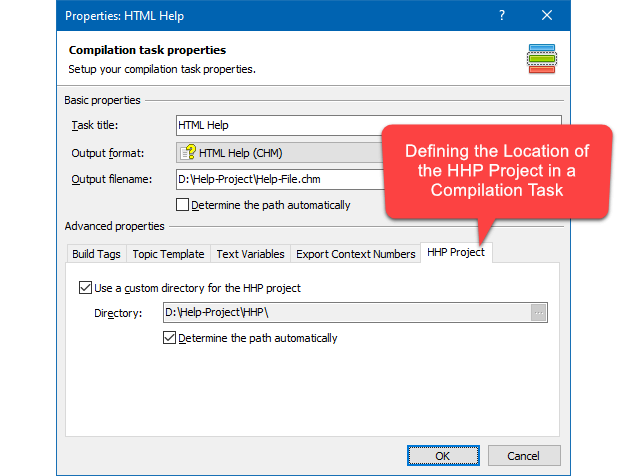
In the batch compilation mode, the HHP directory can be set on the HHP Project tab in the properties of the HTML Help related task.
Remark: It should be noted that, as of HelpSmith version 11, the /hhp-dir switch only takes effect when compiling a .CHM help file via the command line interface (CLI). But if you compile the help file from the UI, you should use the settings above.
Thus, with the HelpSmith help authoring tool, you have complete control over the process of creating help files, including the option to access the data used by the help compiler.
Release Notes for HelpSmith 11
- HelpSmith now allows you to view and edit topics and templates in multiple tabs.
- Redesigned Start Page with easier access to the recent help projects, project locations, and sample projects.
- The File|Open section now combines the ability to open a help project from the disk and access your recent help projects.
- The File|Import feature now imports the TOC entries and keywords using the encoding defined for the CHM file or HHP project (instead of the system encoding).
- The Language dialog now displays languages used in the help project at the top of the list of available languages.
- Added filters for the languages allowing you to quickly find the desired language in the list.
- Added the option to define a custom directory for the HHP project file in the Compile Project dialog, or in the Compilation Task dialog of the batch compilation mode.
- Added the possibility to set the default value for the Target Frame parameter in the Hyperlink and TOC Item dialogs.
- When selecting the project’s (root) node in the project manager, it now provides a more visual representation of the project location, includes the ability to copy the file path to the Clipboard, etc.
- Fixed an issue with compiling a help project that occurred due to undesired characters in image filenames.
- Other enhancements and minor bug fixes.
How to Upgrade
If you have a purchased license for HelpSmith 10.x for less than a year, you can upgrade to the latest HelpSmith 11.x (the same edition) for free. Otherwise, you can upgrade existing licenses to HelpSmith 11.x at a special price. To place an upgrade order, you can visit this link.
Download HelpSmith 11
You can download the latest HelpSmith version here.